
962 Election Assistant
Prepare the §962 election and generate the statement with Forms 1118, 8992, and 8993.
With your client and investments in place, you’re ready to prepare the §962 election. From a selected client account, the workflow runs from a new election through to a finished PDF statement containing Forms 1118, 8992, and 8993.
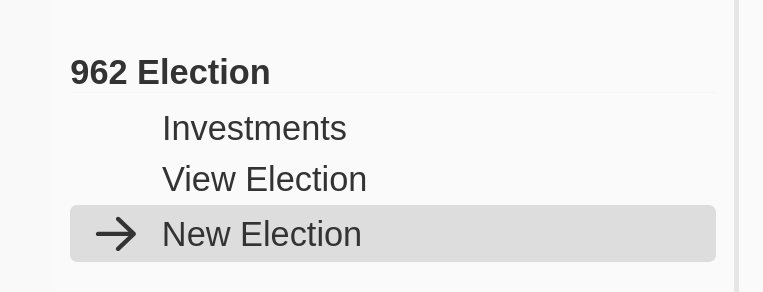
From the left-hand menu, choose New Election under the 962 Election section.
The election screen is organised into sections that you work through from top to bottom.
Section 1 — Election details
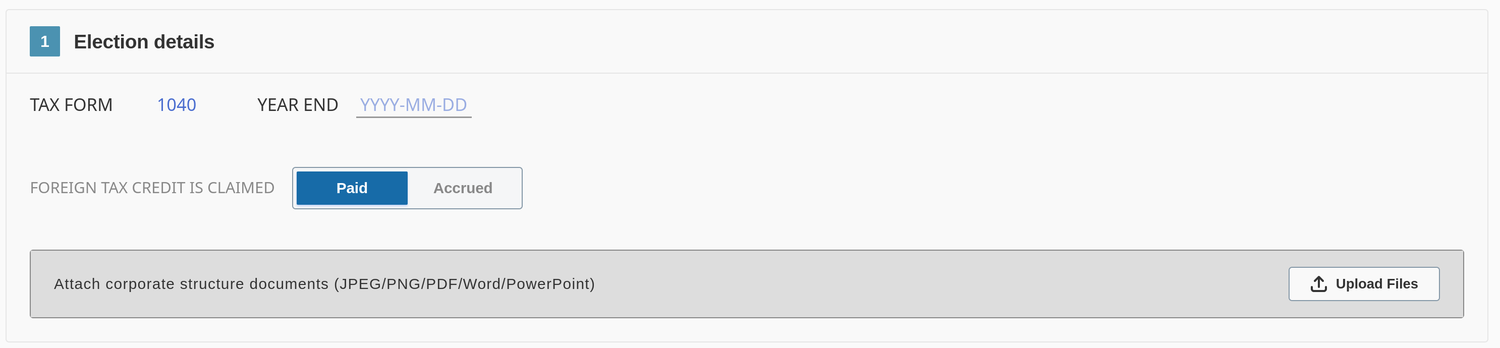
Enter the tax year end and select the tax form (1040). Choose whether foreign taxes are calculated on a Paid or Accrued basis.
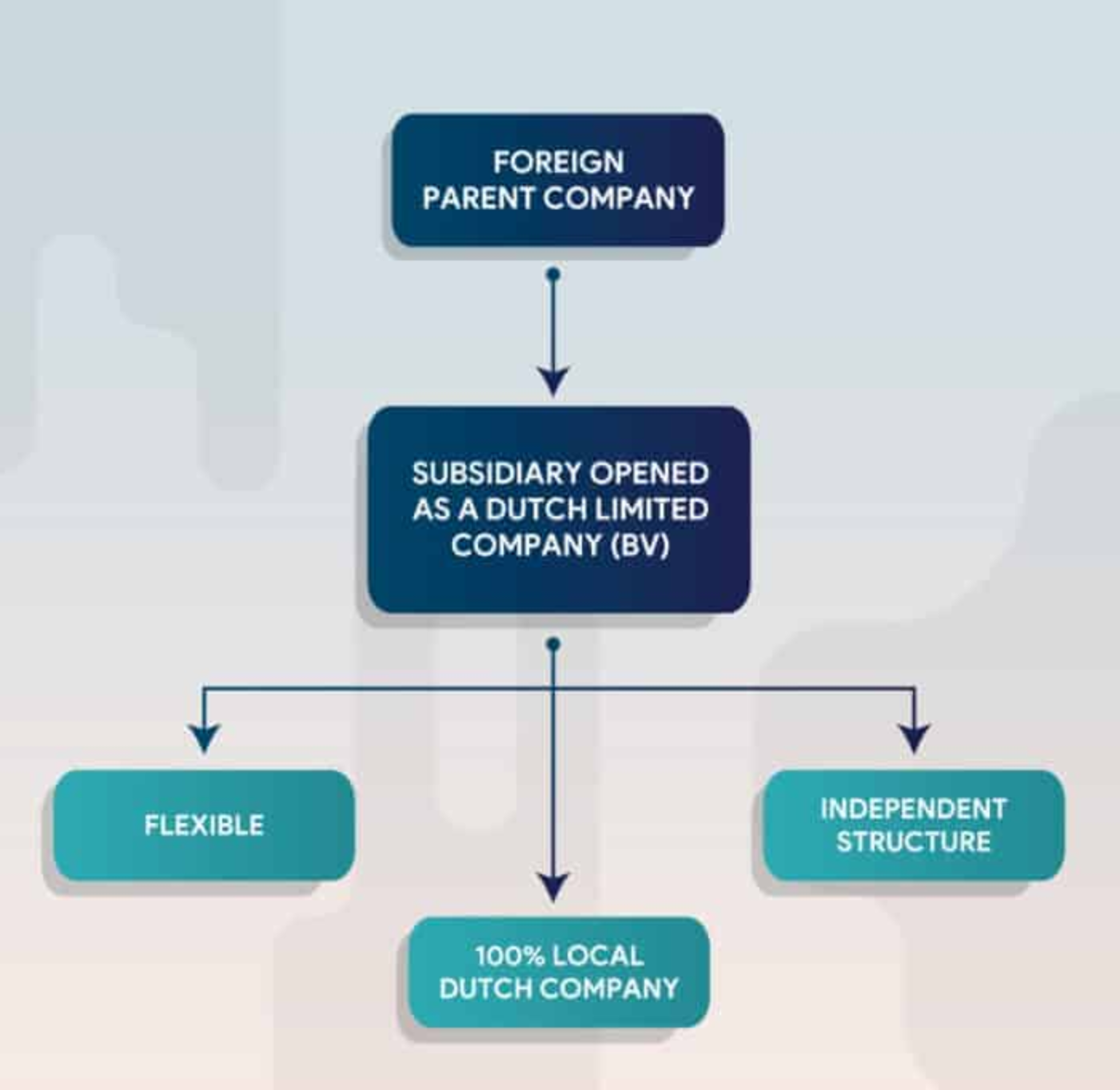
If you’d like the corporate structure included with the election statement, attach it here. This step is optional but recommended when the structure helps clarify ownership. You can upload JPEG, PNG, PDF, Word, or PowerPoint files.

You may attach multiple files in any combination of the supported formats. The maximum size is 16 MB per file, and the total of all files cannot exceed 160 MB.
Section 2 — U.S. shareholder · chain of ownership
Enter the name, address, and taxable year end of any entities in the chain of ownership between the taxpayer and the CFCs for which the taxpayer is making a §962 election. This includes both direct and indirect ownership through other entities. (§1.962-2(b)(1); §958(a).)
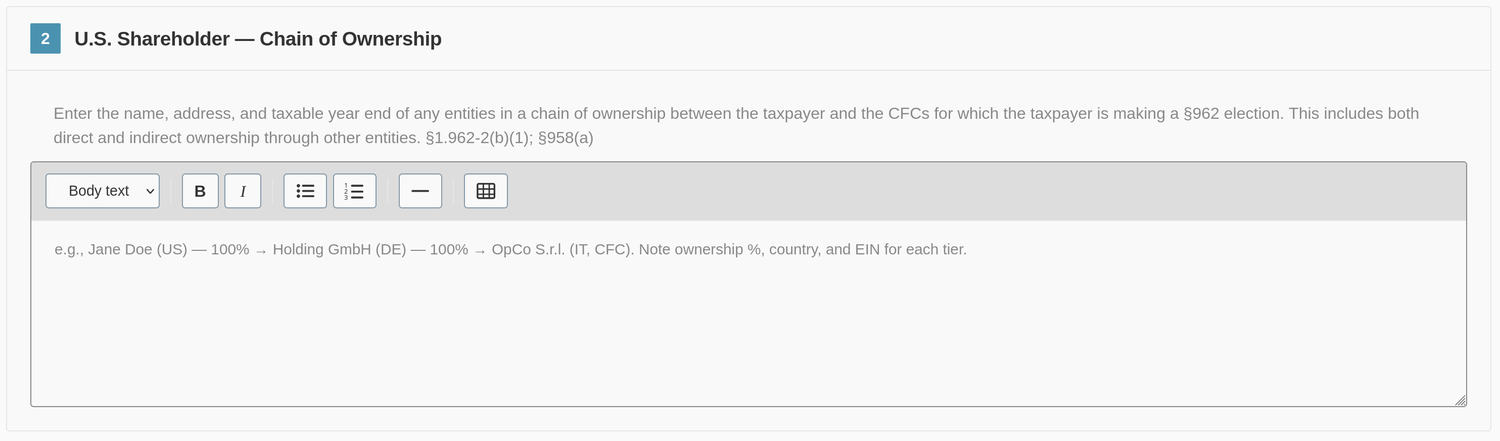
Section 3 — Corporations to be included
This section lists every corporation that will appear on the election. It populates automatically from the investments you added in the Investments menu.
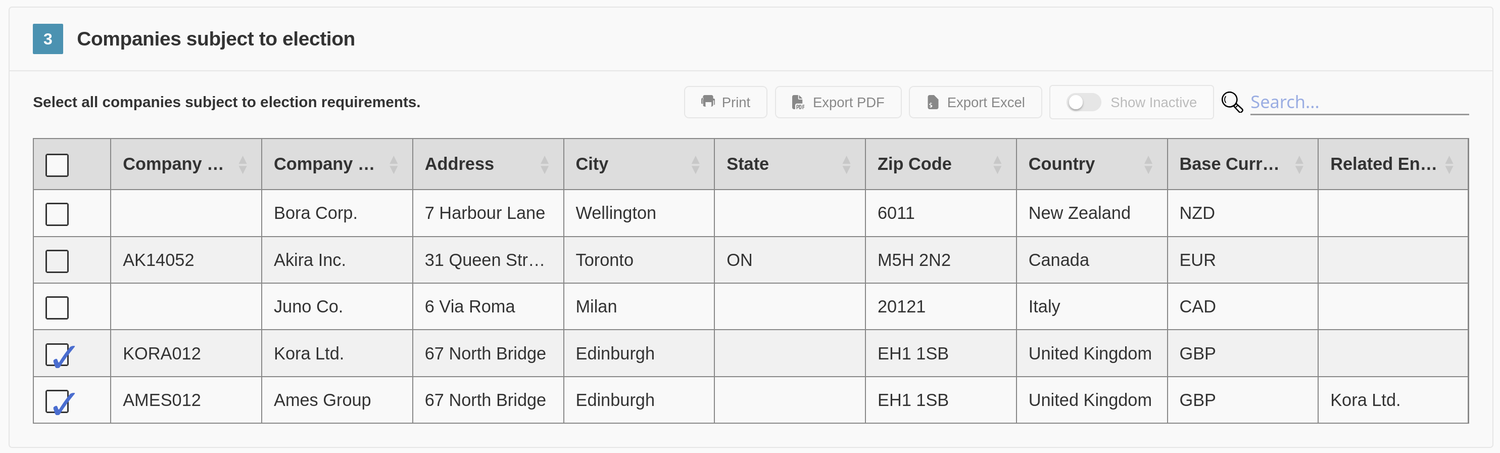
You must include all CFCs you held during the tax year — the §962 election applies to your CFC income inclusions as a group.
Section 4 — Financial data
Enter the income information for every corporation included in the election.
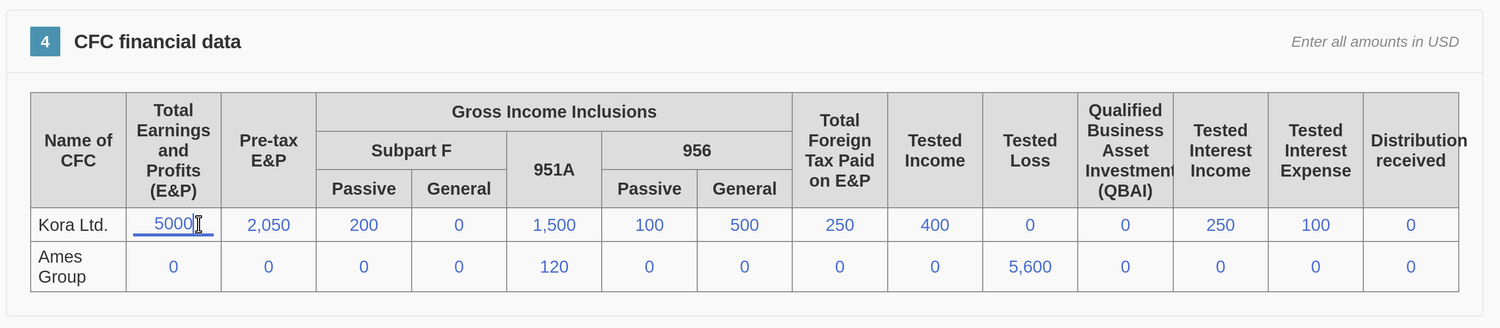
To break earnings and profits down in detail, add multiple lines — one for each earnings type, or to capture multi-year history.
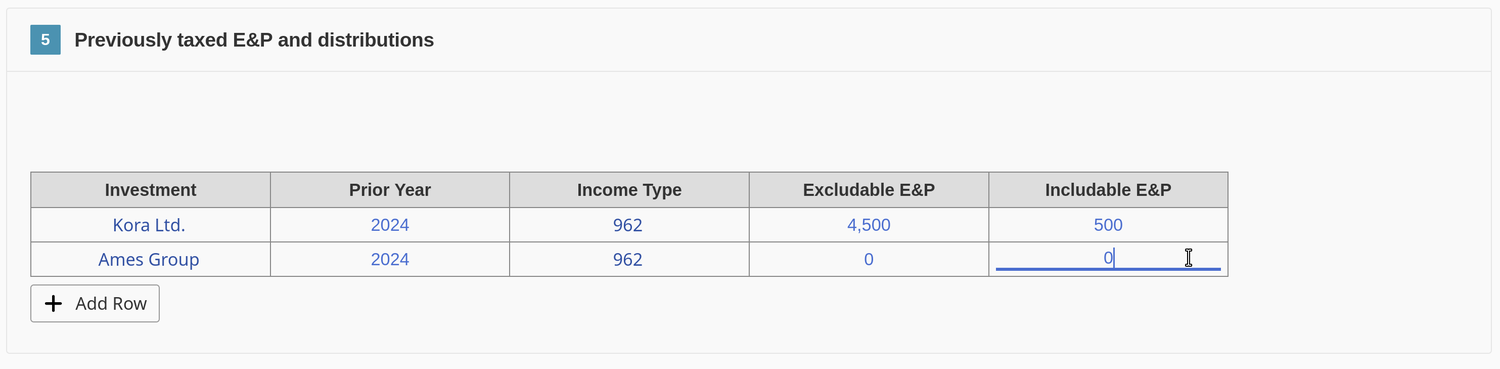
You can save your progress as a Draft at any point, or proceed to Calculate once your entries are complete.

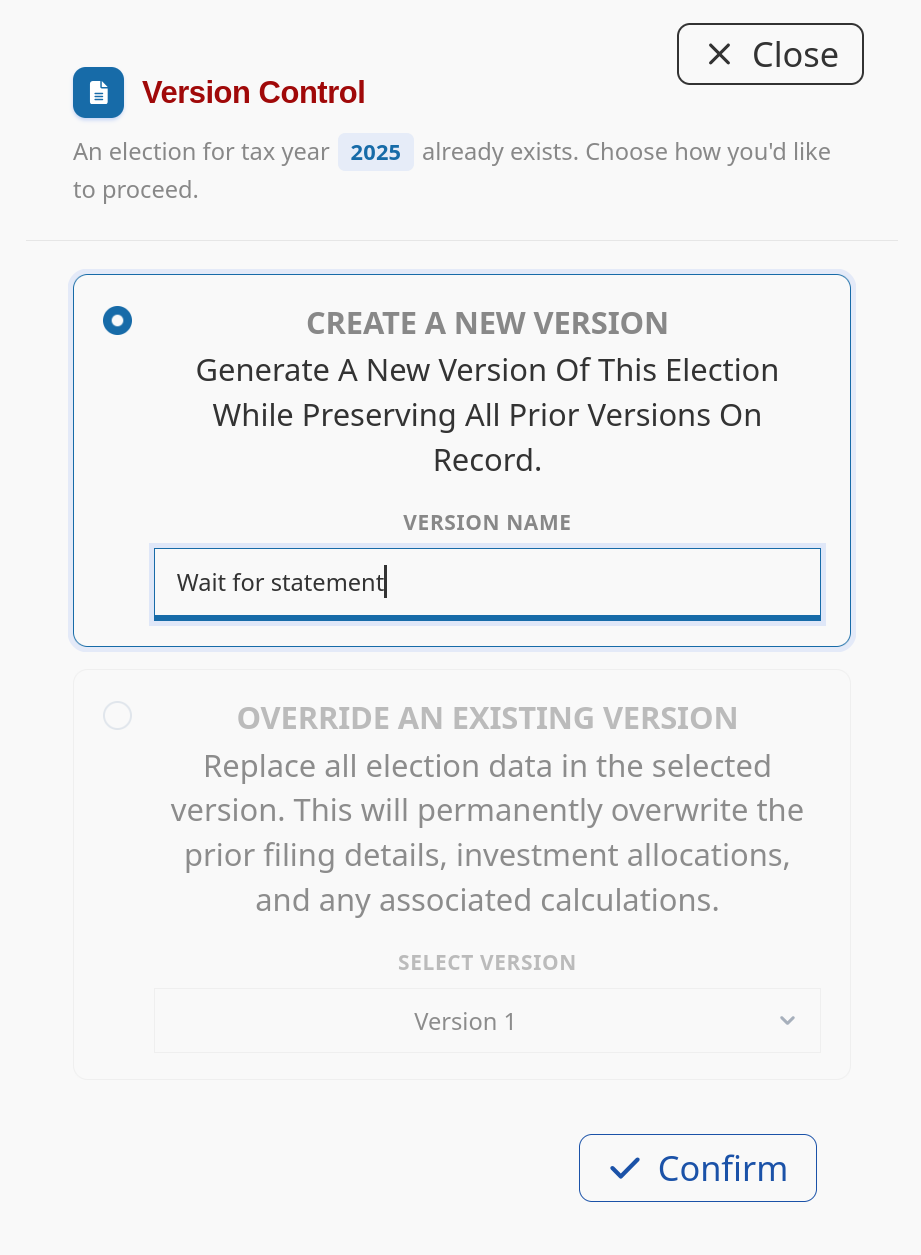
If an election statement already exists for that client and tax year, you’ll be asked whether to create a new version or override an existing one.
The program then returns to the elections screen, where the new version is listed.
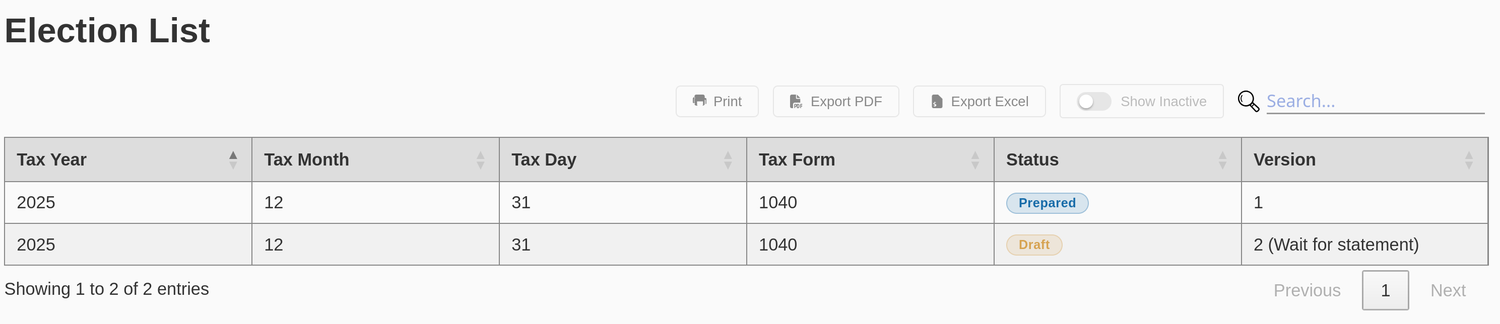
Each version carries a status:
- Draft — a work in progress.
- Prepared — the statement has been generated for that version. Use it to mark an election as completed and filed, or add a version note. There can be only one Prepared version at a time.
Hover over the row for the version you want to work with to reveal its actions:
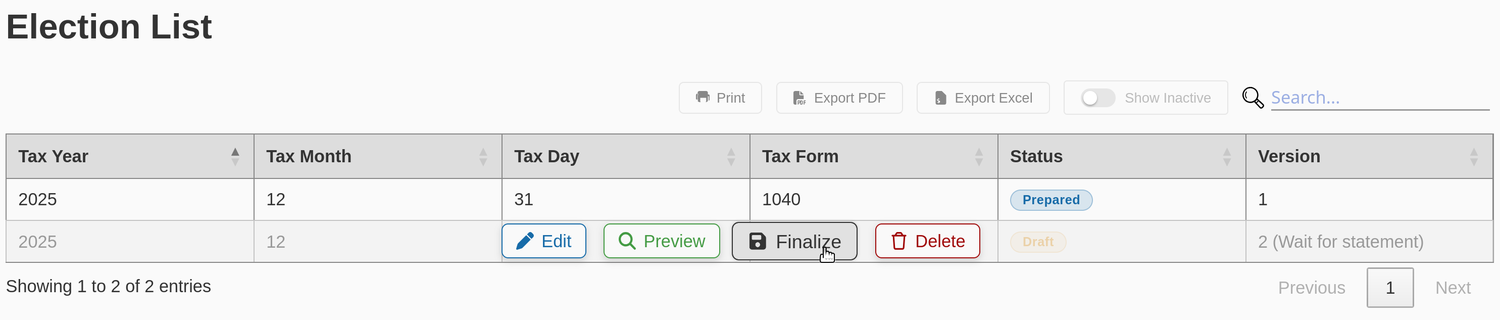
- Edit — change the data you entered.
- Preview — generate a quick preview before marking the version complete.
- Finalize — enter the taxpayer information and prepare a full, downloadable PDF report.
- Delete — remove a version from the list.
Payment
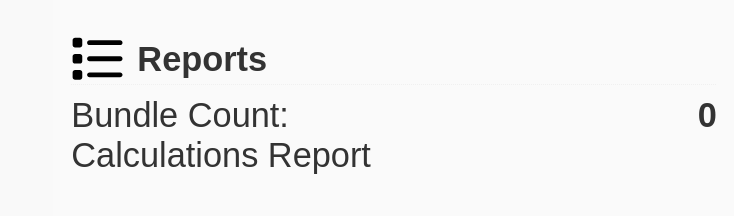
The first time you calculate an election without prepaid forms, you’ll be prompted to pay. A summary of your remaining prepaid calculations is shown in the Reports panel.
An invoice is created for the election version. The cost is $59.95 USD / $85.95 CAD per election version.
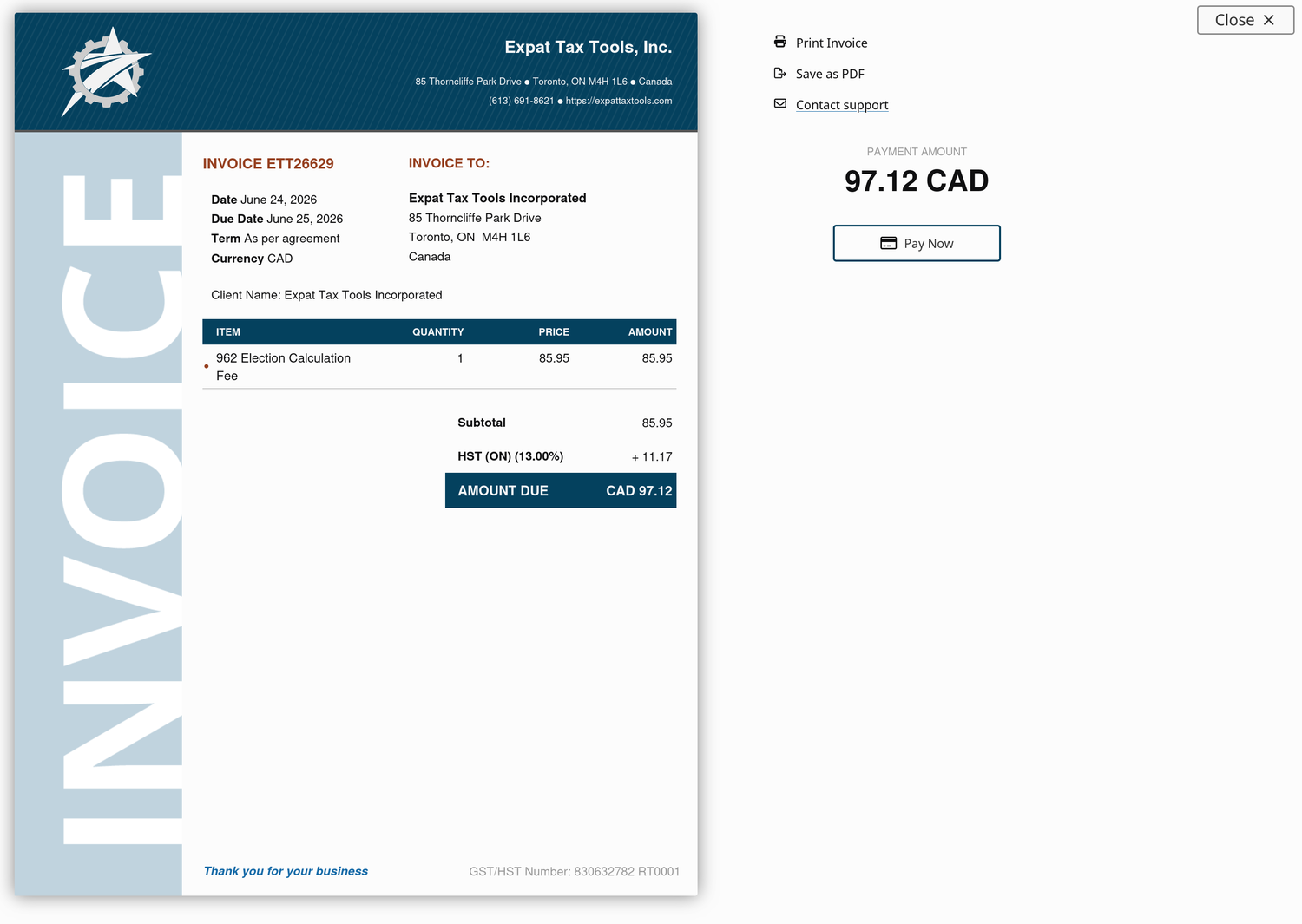
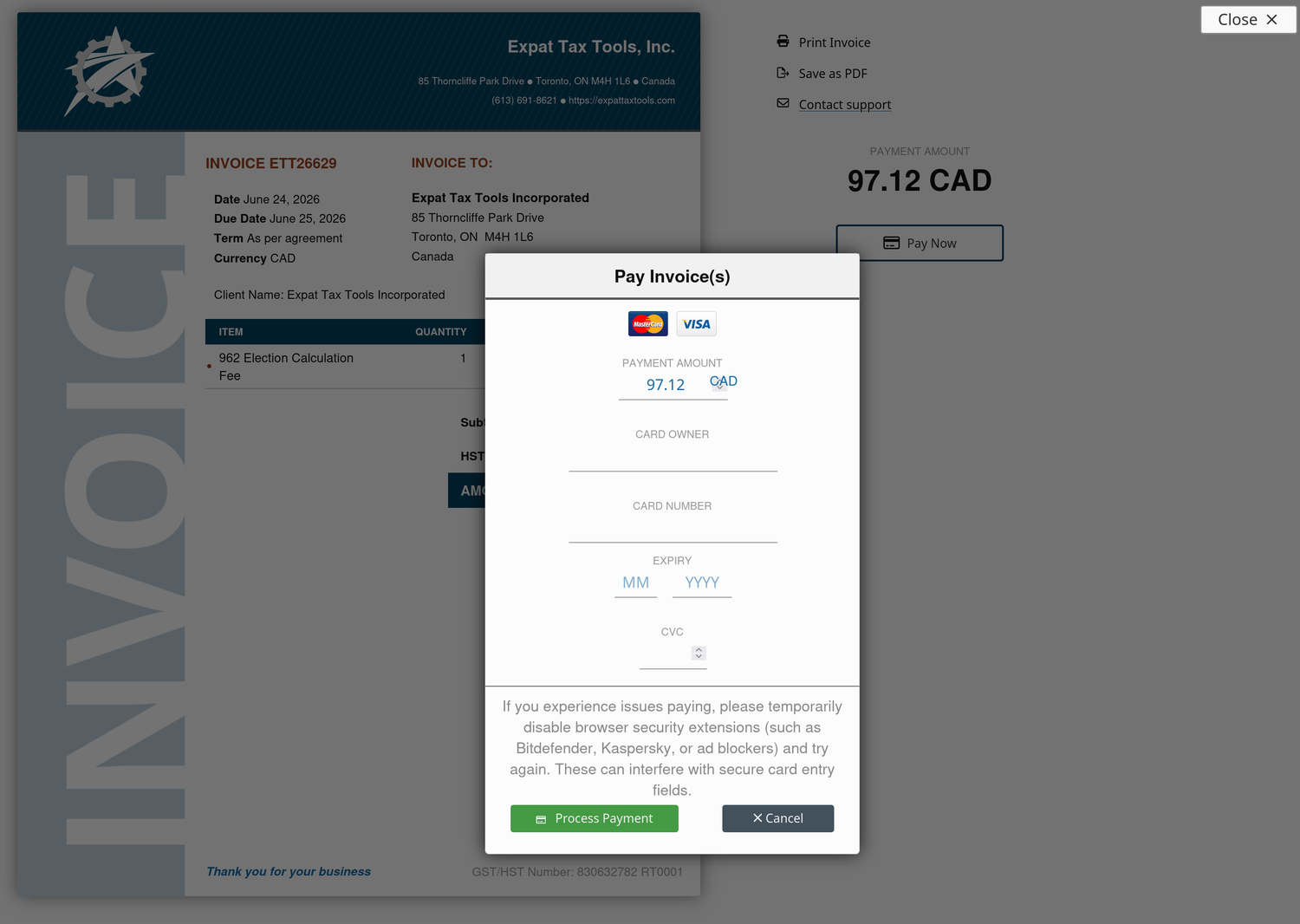
Accepted payment methods:
- Canadian dollars — Visa, Mastercard.
- US dollars — Visa, Mastercard, American Express, and Discover.
Finalize and generate the report
Choose Finalize to enter the taxpayer information used on the report.
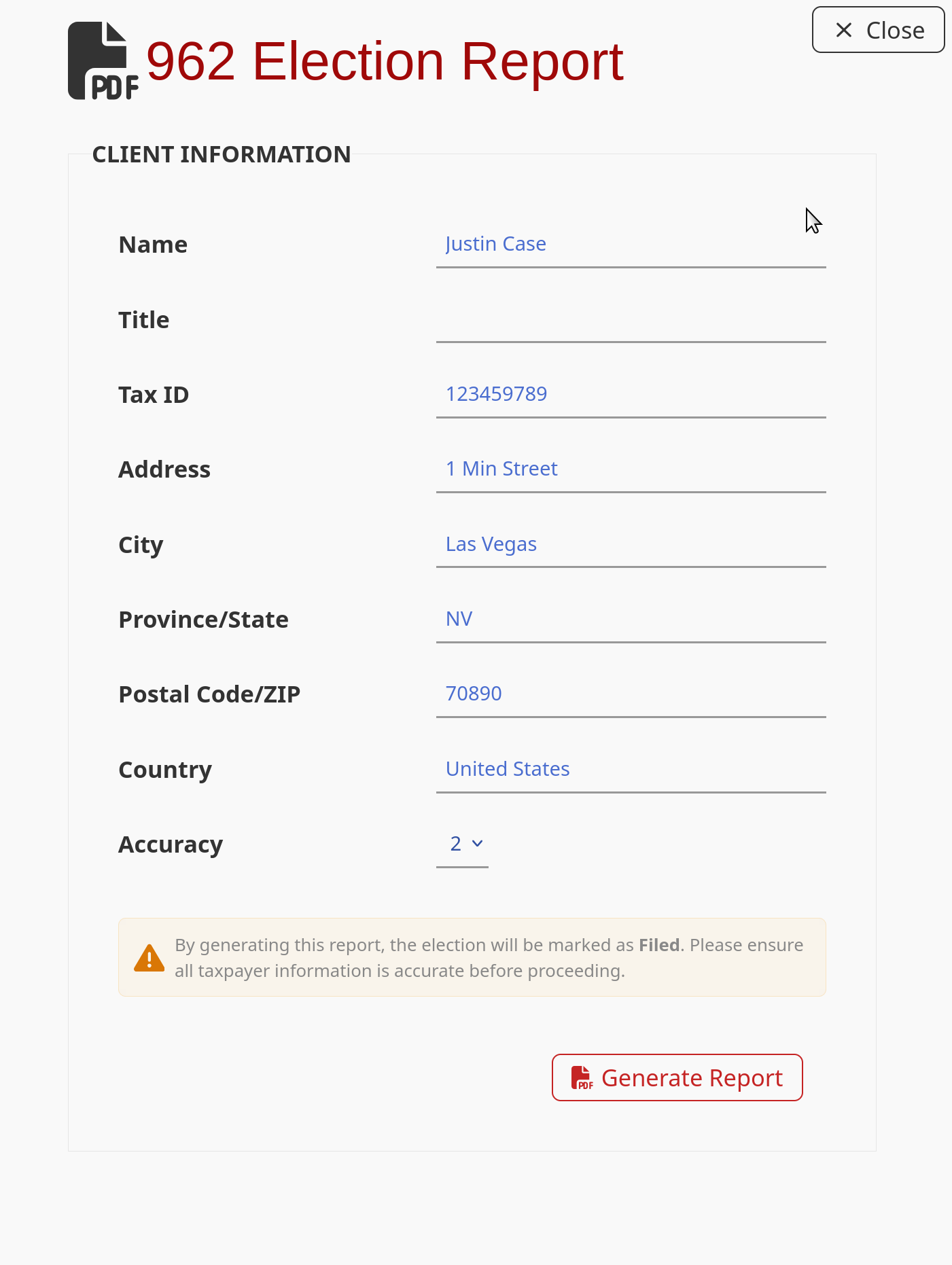
The taxpayer information here is not saved in the system — it is used only to generate the report. If you regenerate the report later, you’ll need to enter it again.
Rounding. Choose your rounding accuracy: 0 digits (whole dollars) or 2 digits (dollars and cents).
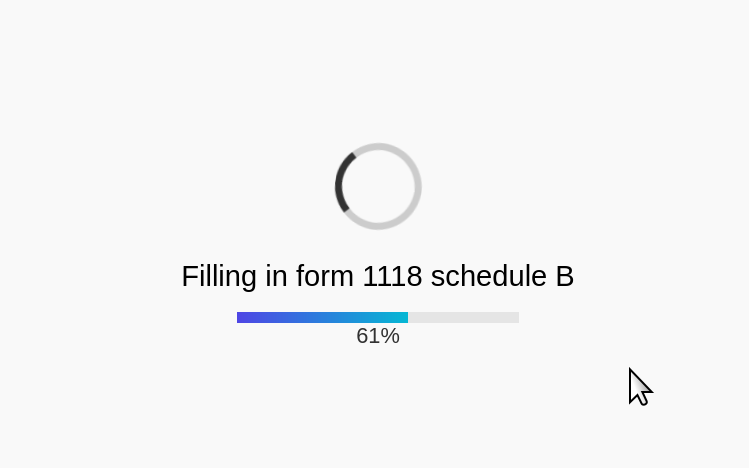
Click Generate Report. The system builds a PDF statement containing a completed Form 1118, Form 8992, and Form 8993, showing progress at each step.
When it’s ready, the report opens in a pop-up window. Review it, then click Download PDF to save a copy.