

Clients
Create, find, and open client records — the starting point for every return.
The first screen in most products is your client list. The page is divided into a left-hand menu and a main content area.
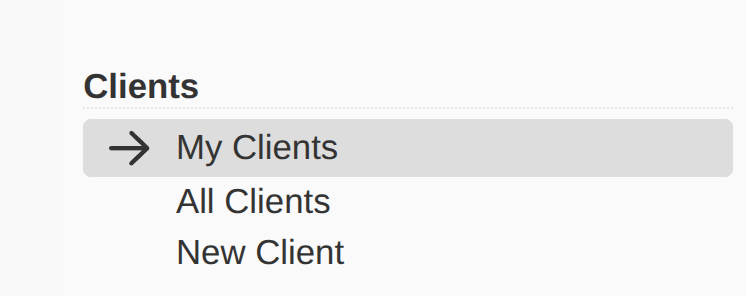
The Client section of the left menu offers three views:
- My Clients — clients associated with your user account.
- All Clients — every client on the customer account.
- New Client — create a new client record.

Click Add Client, or choose New Client from the left menu, to open the new-client form.
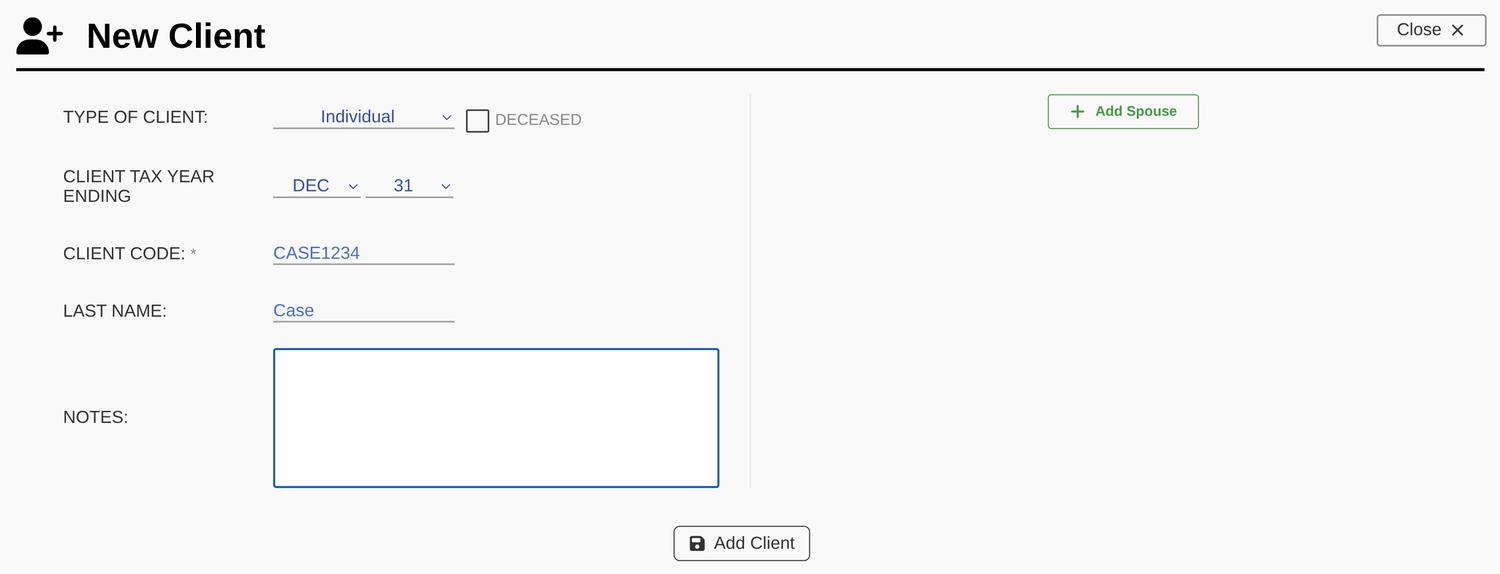
Complete the form:
- Type of client — Individual, Corporation, Partnership, S Corporation, Non-grantor trust, or Estate.
- Tax year ending — the month and day the client’s tax year ends.
- Client code — an internal code to identify the client. We recommend the first four letters of the last name plus the last four digits of the ID (SIN, SSN, EIN, etc.).
- Last name / Company name — for security, avoid entering full names.
- Notes — internal notes only; these never appear on any statement.
For individuals, click Add Spouse on this screen to create both accounts at once. When you’re done, click Save.

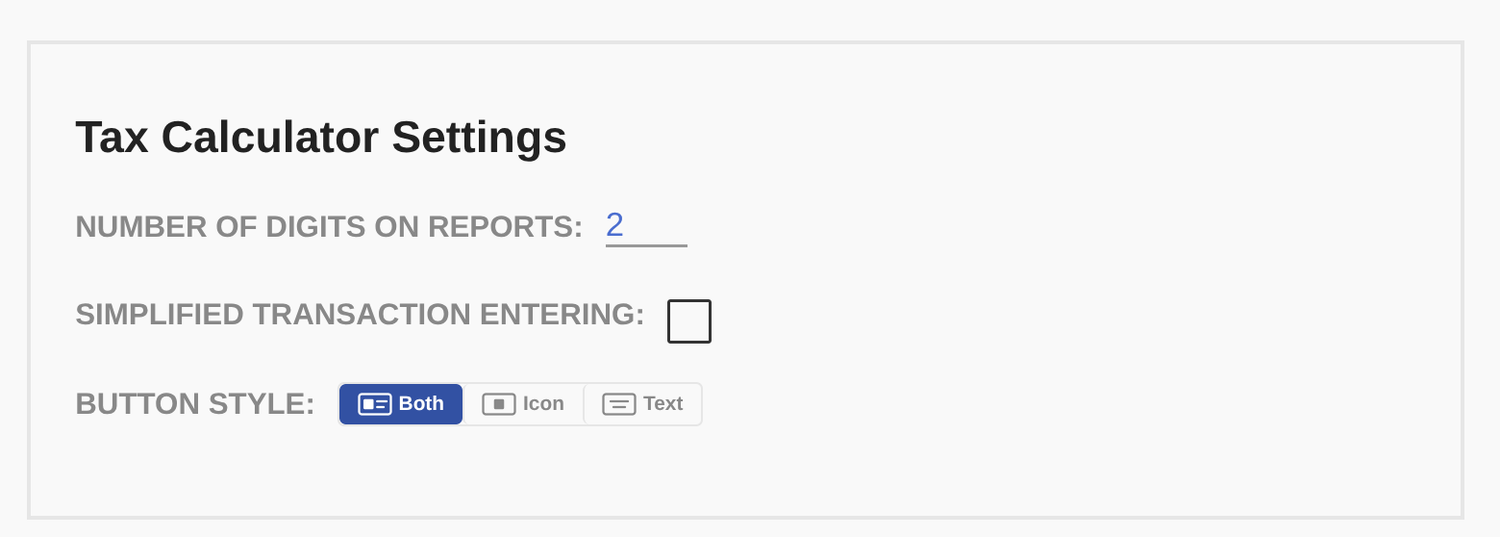
How the per-row actions appear depends on your dashboard settings. Under Tax Calculator Settings → Button Style you can choose icons only, text only, or icon and text. With icons only, an edit icon appears at the right of each row; with the other styles, the actions appear when you hover over the row.

Each client row offers three actions:
- Select — open and work on the client account.
- Edit — modify the client information.
- Delete — mark the client as deleted and remove it from the list.
When a client account is selected, the left menu gains additional options — Edit & Transfer Client plus the options specific to the software you’re using. In the 962 Election Assistant, those are Investment, View Election, and New Election.
Tools in the Expat Tax Tools family share information. A client added in the 962 Election module is automatically available in our other tools, such as PFIC Pro and Gains Pro. The investment list is shared in the same way.