

Guides
Form 8621 Calculator – Excel Import Guide
Importing an excel document directly into the calculator is not supported. In order to transfer the data first you must convert your file into a “csv” text base file.
Converting XLS, XLSX files to CSV
Open your excel document and select the worksheet you want to convert.
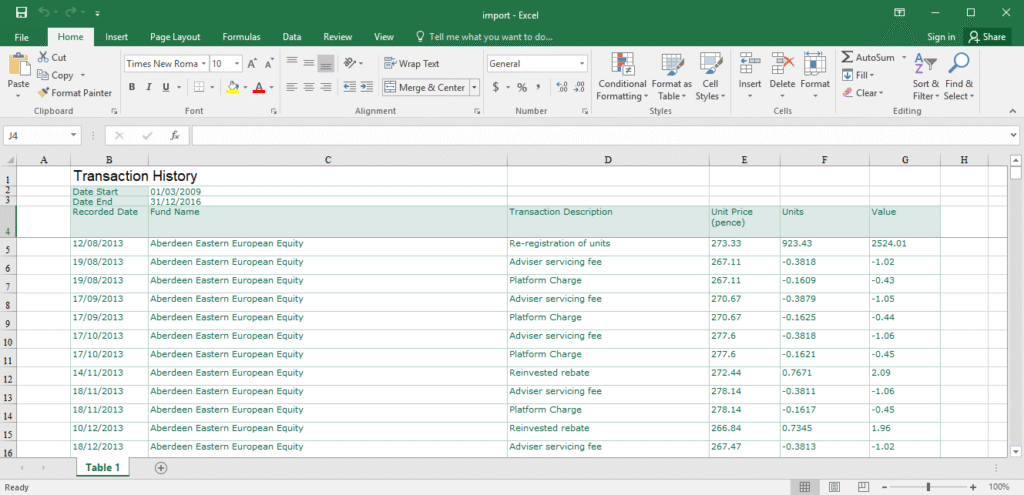
Go to the “File” menu and select the “Save As” option
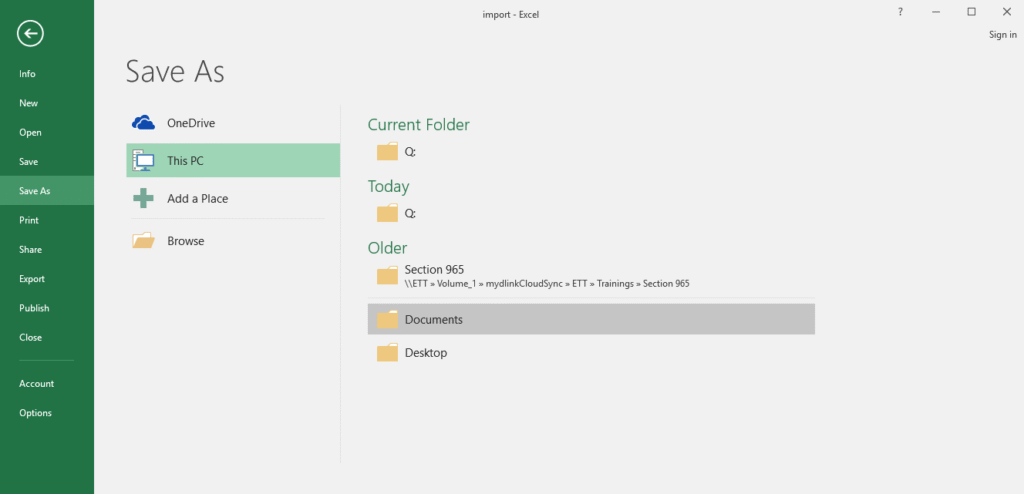
Select the folder where you would like to save the file and change the file type to CSV (MS-DOS).
(Note that if your file is in a MAC format you may need to make adjustments to your dates).
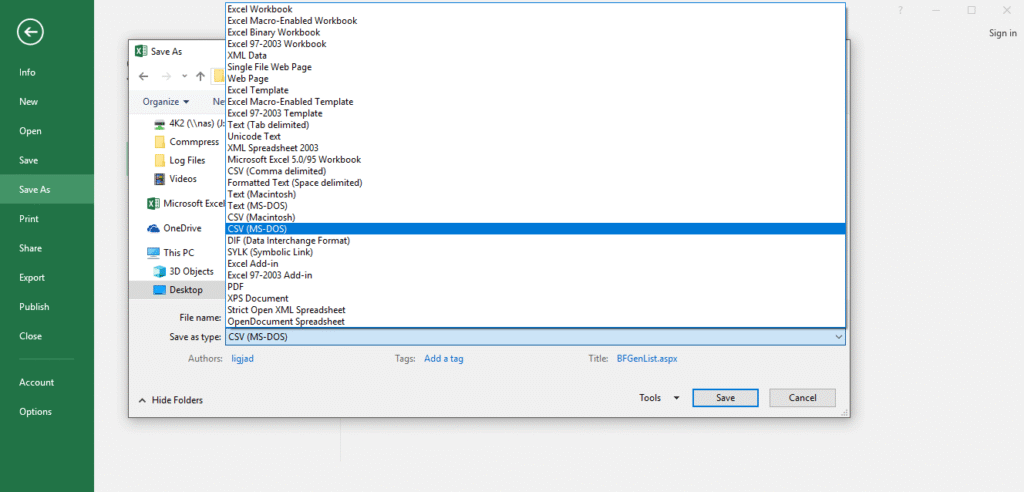
“Save”
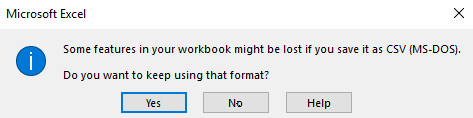
As excel workbooks can contain formulas, macros and other special features, you may get a warning that these will be lost when converting the file to a CSV format.
Select “Yes” to continue.
Importing The CSV File into the Calculator
STEP 1
Go to the transaction history of the fund
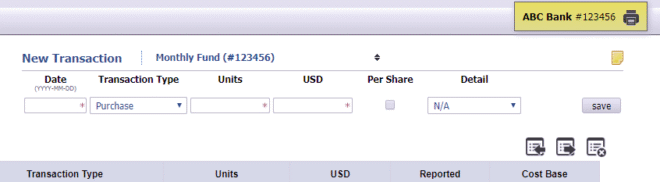
Click on the import icon 
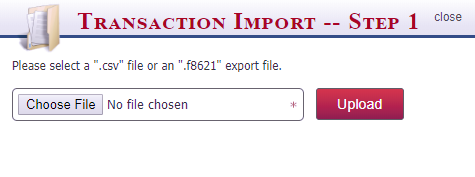
Choose your file and click on the “Upload” button.
STEP 2
In order to import, you first must map the columns in your document to specify which columns contain the Date, Transaction Type, Units, Amounts and the start row.
It is not necessary to filter your spreadsheets to filter out each investment at the export. You can simply enter the column number that has the name of the investment listed in. If your sheet contains
only one investment you can leave this field blank.
Specify on which row the data actually starts on.
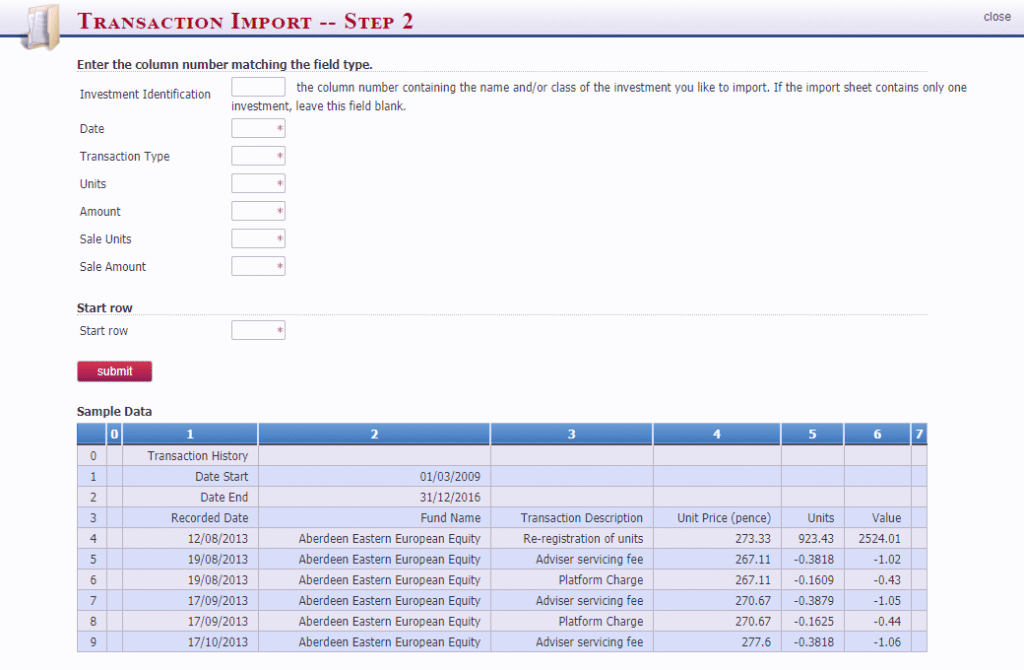
Preview of your document showing the first 10 rows
In our case we make the following entries:
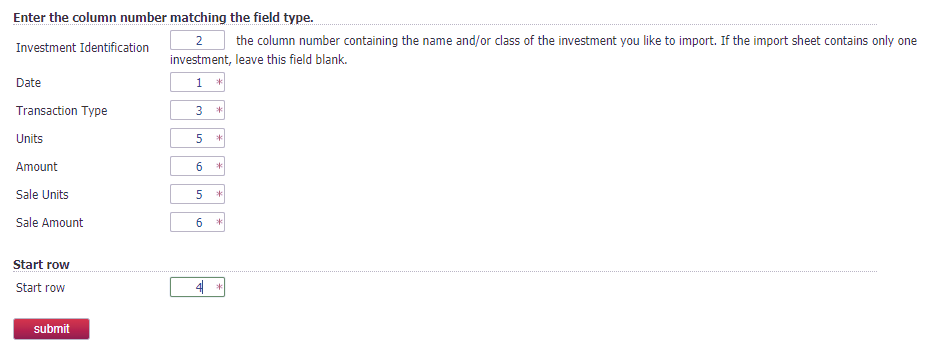
Select the “Submit” button to continue.
STEP 3
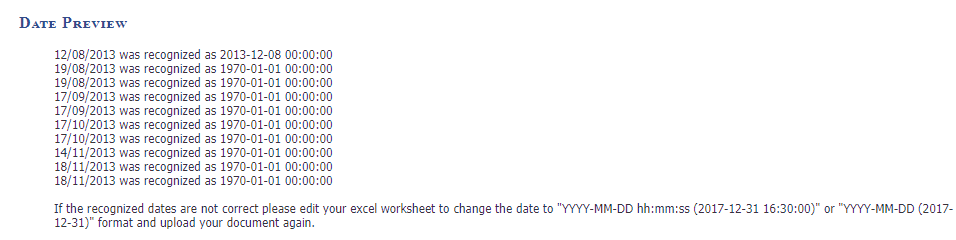
Date Preview
Please ensure that the dates were properly recognized. If not, you must go back to your excel file and
adjust the date format to “YYYY-MM-DD”
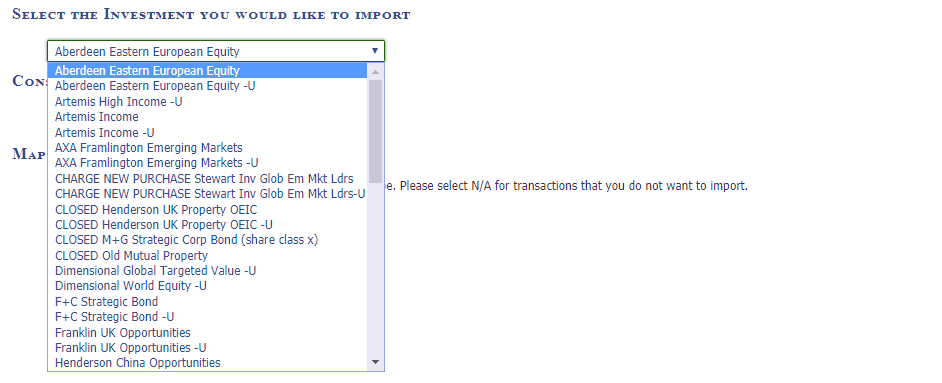
Select the investment you would like to import
Consolidated Import Option
If you would like to consolidate similar transactions on the same date into one block, select this option.
For example: Purchase of 1,000 shares on Jan 5, 2010 and another purchase of 500 shares on Jan 5,
2010 will be imported as Purchase of 1,500 shares on Jan 5, 2010.

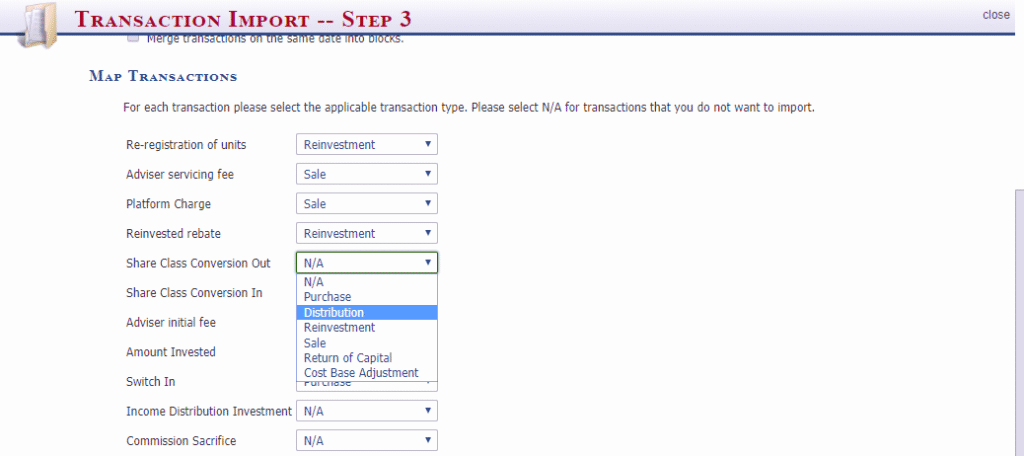
Set the transaction types
The calculator supports the following transaction types: Purchase, Distribution, Reinvestment, Sale,
Return of Capital, Cost Base Adjustment.
Select N/A if any of the transaction types does not apply to this fund and it will be skipped at import.
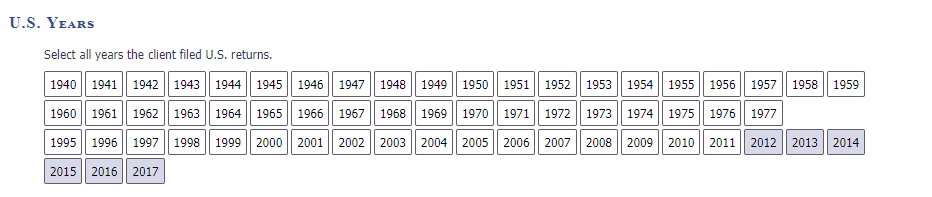
U.S. Years
Select all years the client has filed a US return.
Click the “Submit” button to complete the import process.
