

Data Tables
How filtering, exporting, and sorting work across every product.
Throughout Expat Tax Tools, your records are presented in interactive data tables. The same controls appear in every product, so the handful of behaviours below will make every workflow that follows quicker to navigate.
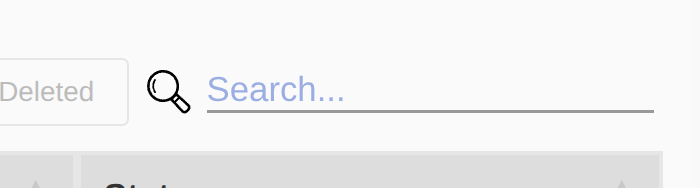
Type into the search field above any table to filter the rows instantly — the list narrows as you type.
Above each table you’ll also find a set of actions:
- Print the data table.
- Export to Excel — download the data as a spreadsheet.
- Export to PDF — download the table as a PDF document.
- Show Deleted — reveal records that have been removed from the active view.
Why deleted records are keptFor tracking and auditing, data is never erased from the database. Instead it is marked as Deleted and hidden from the active view. Turn on Show Deleted to see everything, including removed records.
Tables can be sorted by a single column or by several at once. Click a column header to sort by it; click the same header again to reverse the order.
To sort by multiple columns, hold Shift and click additional headers. The first header you click is the primary sort; each subsequent Shift-click adds a secondary, then a tertiary sort within it.
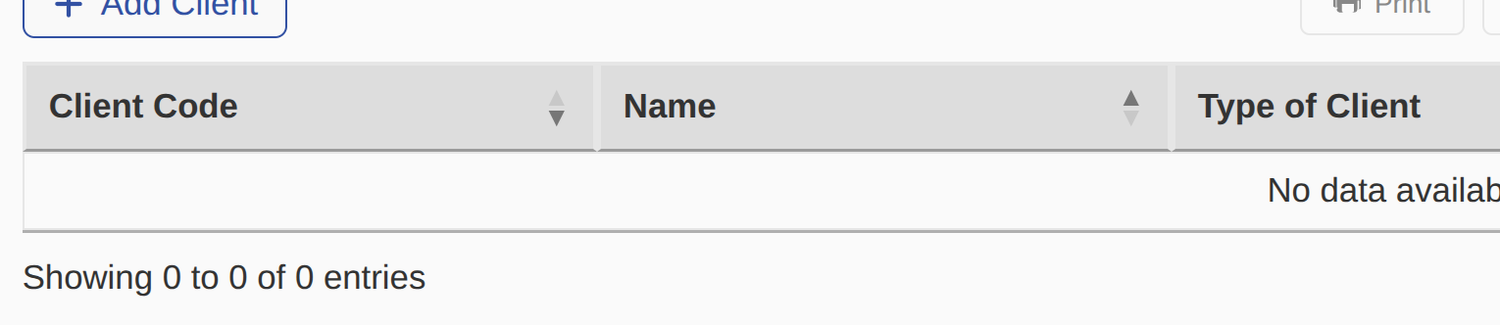
In the example above, the data is sorted first by Client Code (descending), then by Name (ascending) within each code.