

Investments
Record CFCs and other holdings once, then reuse them across the tools.
Investments are shared across the Expat Tax Tools family. Enter an investment once and reuse it in PFIC Pro, Gains Pro, and the 962 Election Assistant. The investment list is reached from the left menu of any selected client account.

Click Add Investment to open the Investment Info form. Required fields are marked with a red asterisk (*).
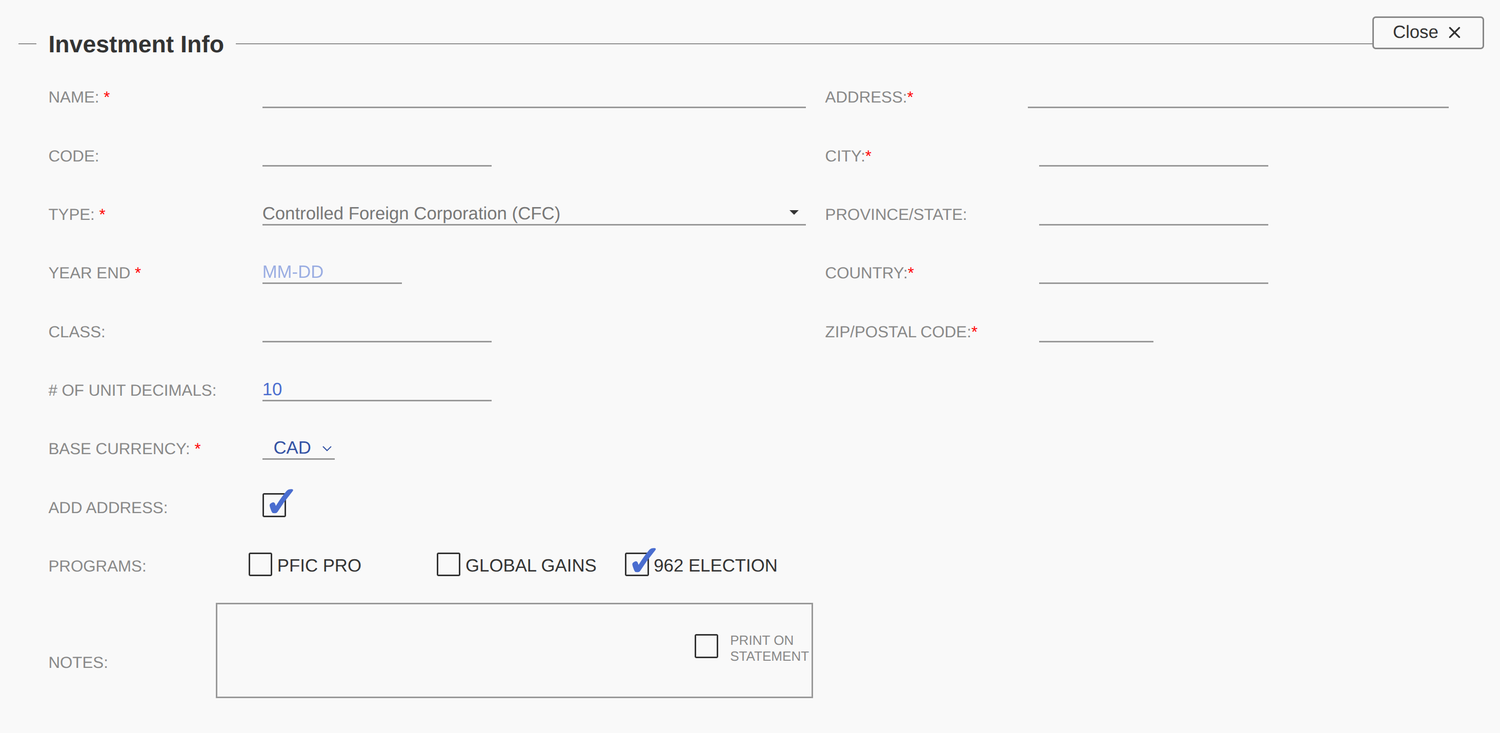
Enter the core details of the investment:
- Investment name and code.
- Investment type — Stock/Equity, Bond, Mutual Fund, Non-US corporation (not publicly traded), CFC, ETF, Cash, Real Property, Intangible, or Other.
- Year end — some investments, such as corporations, have a year end.
- Class — the class of units held, if applicable.
- # of Decimals — the number of decimal places for the units held.
- Base currency — the investment’s default currency. You can still choose other currencies when entering transactions.
- Programs — select the tools this investment should belong to (PFIC Pro, Global Gains, 962 Election). Sharing it across tools eliminates double entry.
- Notes — tick Print on statement to include a note on the final report.
- Address — some reports require the investment’s address (for example, the 962 calculator and the Form 8621 calculator). Complete every field; Province/State is optional.
Investments are held in financial accounts — enter those here. When you hold the same investment across multiple accounts, enter them all; where applicable, the software can file a single form or run a single calculation across every account.
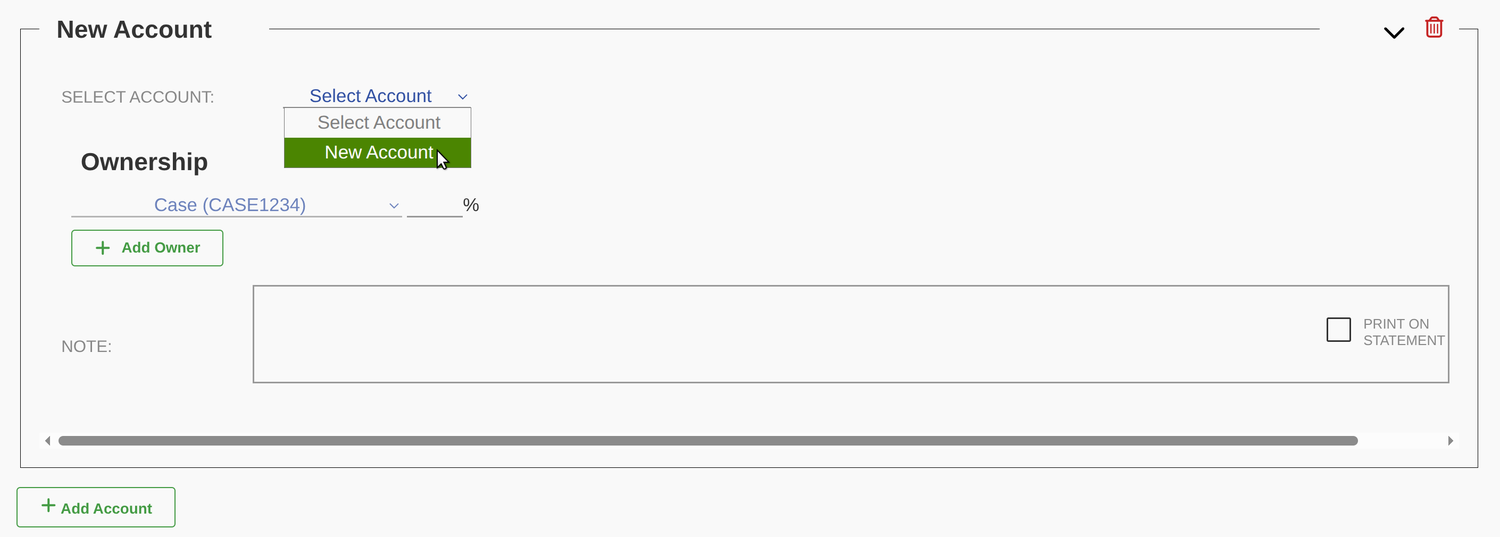
If you’ve already entered accounts, pick one from the drop-down. Otherwise, add a new account.
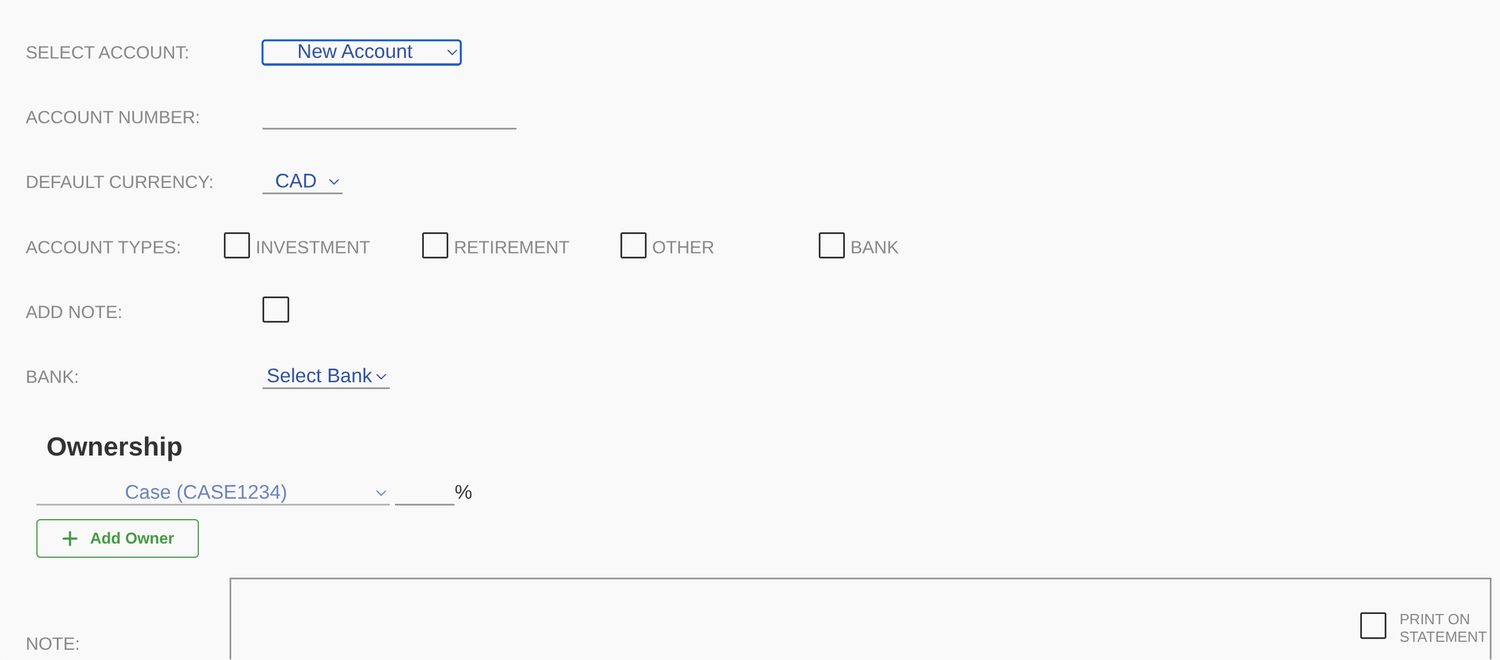
Provide the account number and base currency, then choose the account type:
- Investment account
- Retirement account (RRSP, IRA, etc.)
- Tax-free account (TFSA)
- Bank account (checking, credit)
- Other
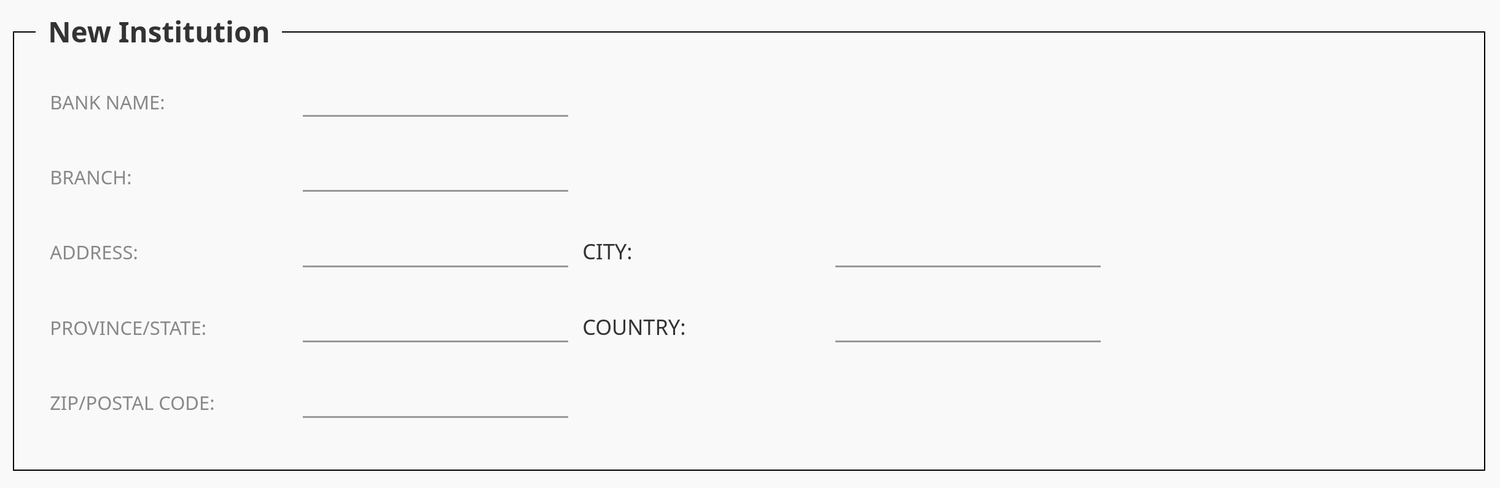
To set the institution, select an existing bank from the drop-down, or choose Add New to create one.
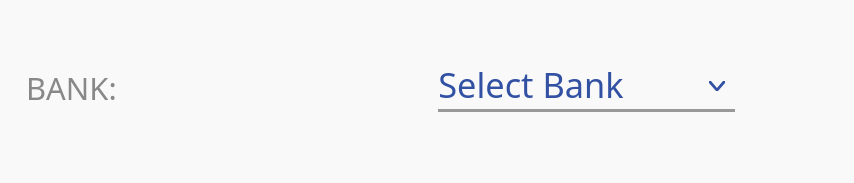
On the New Institution form, the Bank name and Country are mandatory; the remaining fields are optional.
Set the ownership percentage for the client. If you also prepare calculations for the same investment on behalf of other clients, select them from the drop-down and click Add Owner.
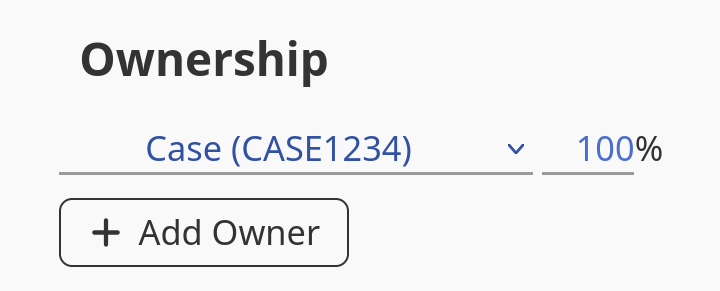
Ownership does not have to add up to exactly 100%, but the total across all owners must not exceed 100%.
Enter any notes in the text field. To include them on the report or statement, tick Print on statement.